How to Listen to Articles on iPhone: Complete 2026 Guide
Your reading list keeps growing, but your free time keeps shrinking. Articles pile up in bookmarks, PDFs sit unopened, and that "save for later" habit turns into "never read at all." Sound familiar?
Here's the good news: your iPhone can read all of it aloud to you. Whether you're commuting, cooking, or at the gym, text-to-speech technology lets you consume content without staring at a screen. In 2026, the options are better than ever — from built-in iOS features to dedicated apps with natural-sounding AI voices.
Why More People Are Switching to Audio
The shift toward listening isn't just about convenience — it's about actually finishing what you save. We've all been there: you bookmark an interesting article, promising yourself you'll read it later. Then later never comes.
"Now I convert them to audio and listen whenever I want, and I actually get through all the content I save. This has been one of the easiest productivity hacks for me: instead of forcing myself to sit down and read, I just let the app read everything for me while I do something else."— Reddit user in r/getdisciplined
There are real benefits beyond productivity too. Listening reduces screen fatigue, helps people with ADHD focus better, and makes content accessible to those with visual impairments. For many, it's transformed passive reading into active, multitasking-friendly learning.
Method 1: Use Your iPhone's Built-in Spoken Content
Before downloading anything, check what's already on your phone. Apple's Spoken Content feature is hidden in Accessibility settings, but it's surprisingly capable.
How to Set It Up
- Go to Settings → Accessibility → Spoken Content
- Enable "Speak Selection" — highlight any text and tap "Speak"
- Enable "Speak Screen" — swipe down with two fingers from the top to read the entire page
- Choose your voice — tap "Voices" to download higher-quality options
Pros and Cons
- ✅ Free and built into iOS
- ✅ Works system-wide (Safari, Books, PDFs, Notes)
- ✅ No additional app required
- ❌ Voices sound robotic compared to AI alternatives
- ❌ No playlist or queue management
- ❌ Limited control over reading experience
The built-in option works in a pinch, but if you're serious about listening to content regularly, a dedicated app offers a dramatically better experience.
Method 2: Dedicated Text-to-Speech Apps
The text-to-speech app market in 2026 is crowded, with options ranging from free basic readers to premium services. Here's what actually works.
What to Look For
- Natural AI voices — the difference between enjoying an article and abandoning it
- Multiple import options — web articles, PDFs, plain text
- Speed control — most people prefer 1.25x-1.5x playback
- Background playback — keep listening while using other apps
- Highlighted text sync — follow along when you want to read
Speechify
The most well-known name in the space, Speechify offers high-quality AI voices and integrates with many platforms. However, it comes with a significant price tag — the premium features that make it worthwhile require a subscription that many users find too expensive.
"I'm looking for a good text-to-speech program... I would prefer something free that I can use both on my windows PC and iPhone, but I'm willing to pay for quality as long as it's not crazy expensive."— Reddit user in r/audiobooks
- ✅ Industry-leading AI voices
- ✅ Excellent OCR for scanned documents
- ❌ Expensive subscription ($139/year)
- ❌ Aggressive upselling in the free version
Read Aloud – Speech
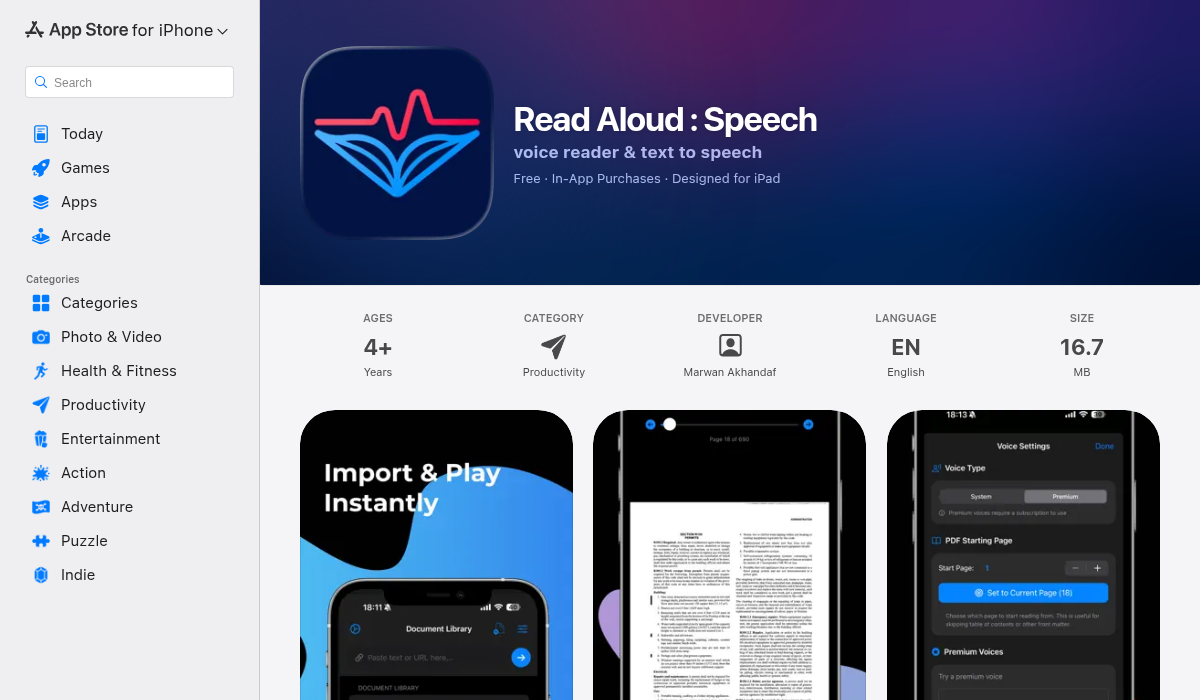
Read Aloud takes a different approach — offering both Apple's built-in voices and premium realistic voices in one clean interface. It's designed for people who want to listen to articles, web content, and documents without complexity.
- ✅ Import plain text, web articles, or PDFs
- ✅ Multiple high-quality voice options
- ✅ Adjustable speed, fonts, and themes
- ✅ Highlighted text as it reads (follow along mode)
- ✅ Distraction-free reading interface
- ✅ More affordable than premium competitors
What sets Read Aloud apart is its focus on the reading experience itself. The text highlighting feature syncs with the audio, so you can visually follow along when you want to — perfect for language learners or when absorbing complex material.
Natural Reader
A solid option with cross-platform support, Natural Reader offers web, desktop, and mobile apps. The free tier is functional, and premium voices are available through subscription.
- ✅ Cross-platform availability
- ✅ Good free tier
- ❌ Interface feels dated
- ❌ Premium required for best voices
Pro Tips for Better Audio Reading
Getting the most out of text-to-speech isn't just about choosing the right app. Here's how to optimize your listening experience:
- Start at 1.25x speed — you'll adjust faster than you think, and 1.5x becomes comfortable quickly. This cuts a 10-minute article down to 6-7 minutes.
- Use Reader Mode for web articles — before sending to your TTS app, use Safari's Reader Mode to strip ads and navigation. You'll get cleaner audio without interruptions.
- Batch your content — instead of reading one article at a time, queue up several pieces on a similar topic. This creates a mini-podcast experience.
- Match content to activity — save complex articles for low-focus activities like folding laundry. Simple content works for running or driving.
- Use AirPods' pause feature — remove one AirPod to auto-pause, making it easy to switch between listening and real-world conversations.
What About Podcasts of Articles?
Some services now generate actual podcast-style audio from written content — with multiple voices, music, and production value. If you want to go beyond basic text-to-speech:
- MelonNote — takes your notes and study material and generates podcast-style conversations between AI hosts. Ideal for students who want to learn by listening.
- Snipd — focuses on existing podcasts but can summarize and highlight key points
Setting Up Your Article Listening Workflow
Here's a simple system that actually works:
- Save articles to a central location — use Safari's Reading List, Pocket, or a Notes folder
- Weekly batch session — once a week, open your TTS app and import everything you've saved
- Listen during commutes or workouts — these are your audio article time blocks
- Archive or delete after listening — don't let a backlog build up again
The key is treating your article queue like a playlist, not a chore. When listening becomes as easy as hitting play, you'll finally get through all that content you've been saving.
The Bottom Line
Your iPhone is fully capable of reading articles aloud — the question is whether you want basic functionality or a premium experience. Apple's built-in Spoken Content works for occasional use, but if you're serious about consuming more content through audio, a dedicated app makes all the difference.
For most people, the sweet spot is an app that offers natural voices without a massive price tag. Read Aloud – Speech hits that balance well, with premium voice quality and a clean interface that doesn't overwhelm you with features you'll never use.
Start small — take one article you've been meaning to read, convert it to audio, and listen during your next commute. Once you experience how much content you can consume while doing other things, you'll wonder why you didn't start sooner.